- ConversionSeed Digital Agency
- December 23, 2025
Dropping a pin (also called a “dropped pin”) in Google Maps is one of the simplest yet most powerful features. It lets you mark an exact spot on the map — perfect for sharing meeting points, saving parking locations, pinpointing scenic views, or navigating to places without official addresses.
As of 2026, the core process remains the same across devices: **long-press on mobile** or **right-click on desktop**. Google has added smoother AI-assisted suggestions, better voice integration (e.g., “Hey Google, drop a pin here”), and improved sharing options, but the basic steps are unchanged.
Here are the **step-by-step instructions** for Android, iPhone (iOS), and desktop/web.
### 1. On Android (Google Maps App)
The process is fast and intuitive — ideal for on-the-go use.
1. Open the **Google Maps** app on your Android phone.
2. Navigate or zoom to the desired location on the map.
3. **Long-press** (tap and hold) on the exact spot for 1–2 seconds.
4. A **red pin** will appear, and an info card will pop up at the bottom with details (address, coordinates, etc.).
5. From the card, you can:
– Tap **Save** to add it to a list (Favorites, Want to go, etc.)
– Tap **Label** to give it a custom name
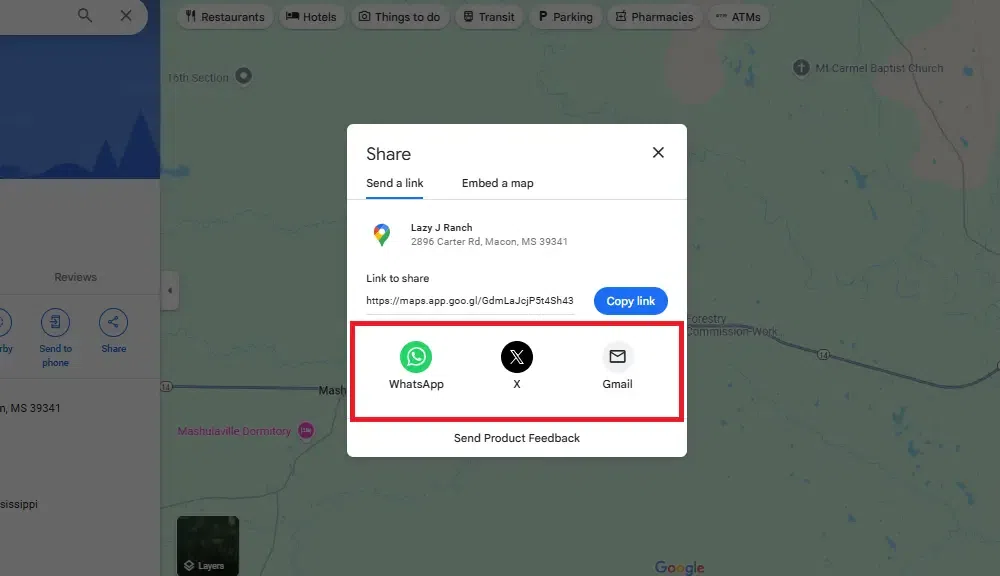
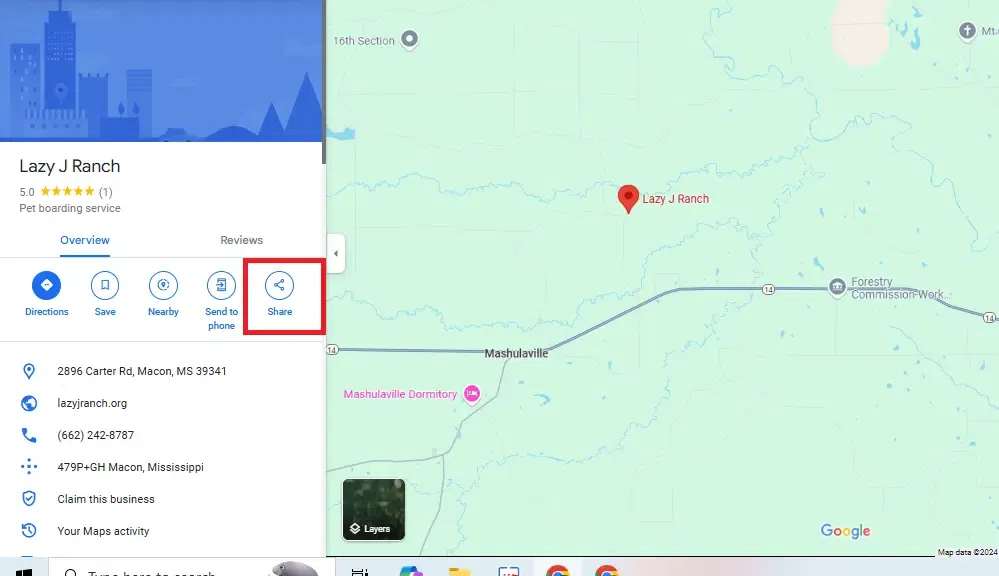
– Tap **Share** to send the location via message, email, WhatsApp, etc.
– Get directions by tapping the navigation icon
Here are visual examples of the process on Android:

2. On iPhone / iPad (iOS)
The steps are almost identical to Android — Google Maps behaves consistently across platforms.
1. Launch the **Google Maps** app on your iPhone or iPad.
2. Scroll/zoom to find the spot you want to mark.
3. **Long-press** firmly on the location until the red pin drops.
4. Swipe up on the info card at the bottom for more options.
5. Tap **Save**, **Label** (to rename it), **Share**, or start directions.
Pro tip: Saved pins sync across devices if you’re signed in with the same Google account.
See these iOS-specific screenshots for reference:

### 3. On Desktop / Web Browser (maps.google.com)
Desktop offers a slightly different but equally simple method.
1. Go to **maps.google.com** in your browser (Chrome, Firefox, Edge, etc.).
2. Navigate to the area you want to pin.
3. **Right-click** (or Ctrl+click on Mac) on the exact spot.
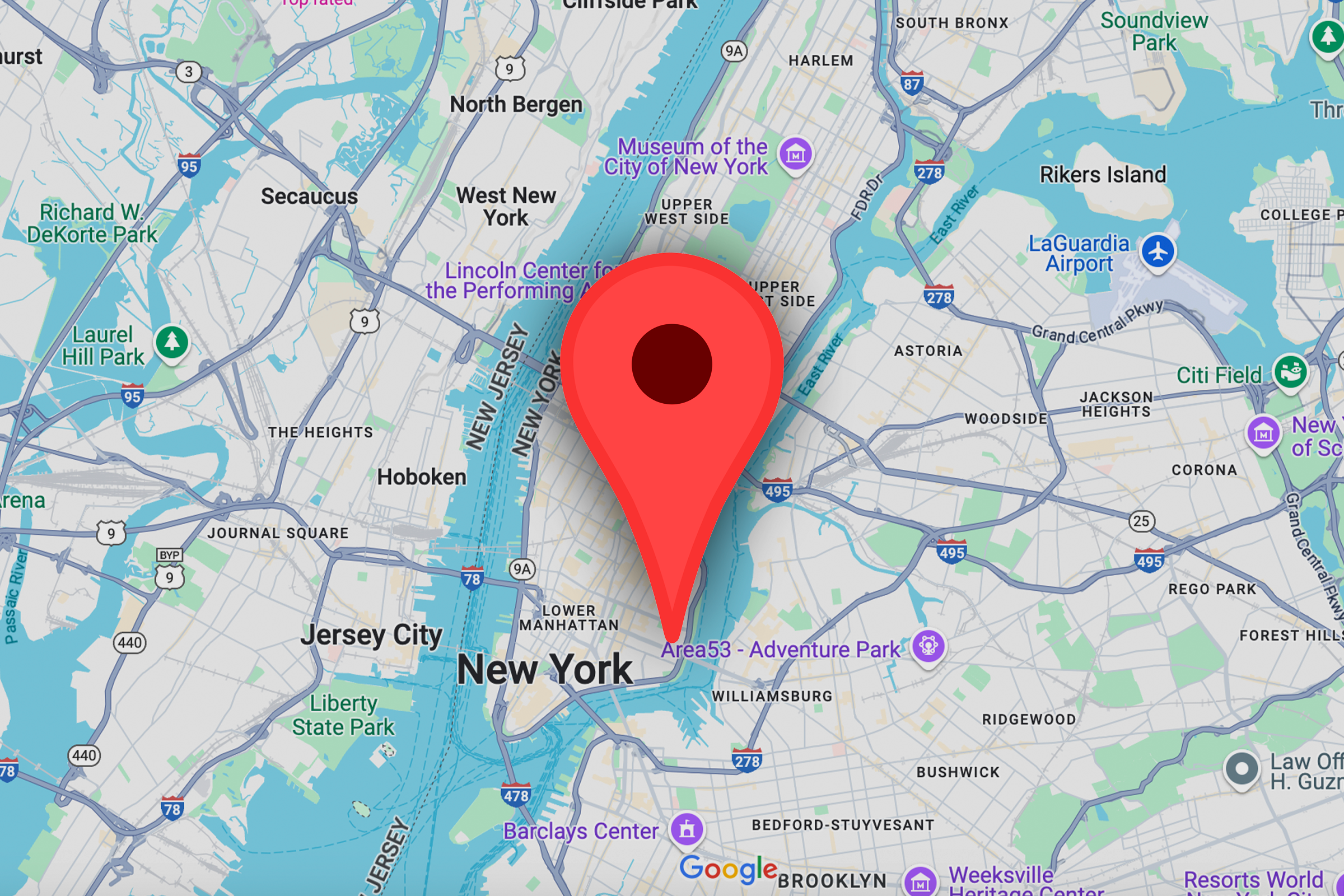
4. From the context menu, select **”Drop a pin”** (or “What’s here?” in some versions — it achieves the same result).
5. A grey/red pin appears with an info panel at the bottom.
6. Click the pin or panel to **Save**, **Label**, **Share**, or get directions.
Visual guide for desktop pinning:
Bonus: Saving, Labeling, Sharing & Managing Pins (All Devices)
Once the pin is dropped:
– **Save** → Choose or create a list (syncs to your Google account).
– **Label** → Add a custom name like “Favorite Coffee Spot” or “Parking Spot #3”.
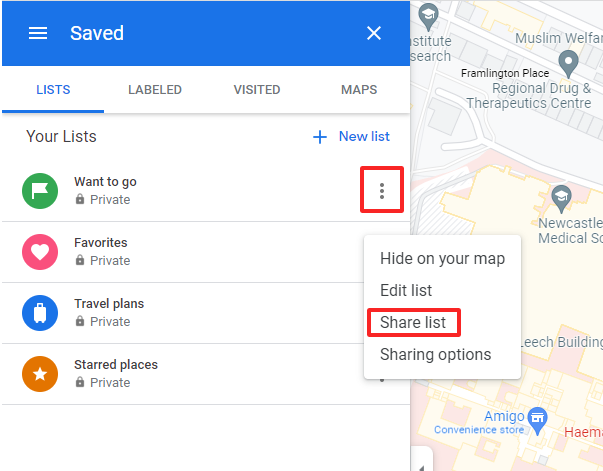
– **Share** → Copy link, send via apps, or embed in messages — recipients get exact directions.
– **Edit/Remove** → Tap the pin → select “Remove” or edit from “Your places” > “Saved”.
Here are examples of save/label/share options:
Quick Tip for 2026
With ongoing Gemini AI integration, you can soon say things like “Drop a pin at the park entrance” hands-free on supported devices.
That’s it! Dropping a pin takes seconds but saves tons of time. If you run into any differences on the very latest app version, just update Google Maps — the feature is rock-solid across platforms.
Let me know if you need help with advanced uses like multiple pins or custom maps!
Unlock Your
Digital Potential with
Conversion Seed - SEO & Digital Marketing Agency Solutions!
Elevate your online presence with Conversion Seed - SEO & Digital Marketing Agency trusted Digital Matketing strategies and solutions.