Dropping a pin (also called a “dropped pin”) in Google Maps is one of the simplest yet most powerful features. It lets you mark an exact spot on the map — perfect for sharing meeting points, saving parking locations, pinpointing scenic views, or navigating to places without official addresses.
As of 2026, the core process remains the same across devices: **long-press on mobile** or **right-click on desktop**. Google has added smoother AI-assisted suggestions, better voice integration (e.g., “Hey Google, drop a pin here”), and improved sharing options, but the basic steps are unchanged.
Here are the **step-by-step instructions** for Android, iPhone (iOS), and desktop/web.
### 1. On Android (Google Maps App)
The process is fast and intuitive — ideal for on-the-go use.
1. Open the **Google Maps** app on your Android phone.
2. Navigate or zoom to the desired location on the map.
3. **Long-press** (tap and hold) on the exact spot for 1–2 seconds.
4. A **red pin** will appear, and an info card will pop up at the bottom with details (address, coordinates, etc.).
5. From the card, you can:
– Tap **Save** to add it to a list (Favorites, Want to go, etc.)
– Tap **Label** to give it a custom name
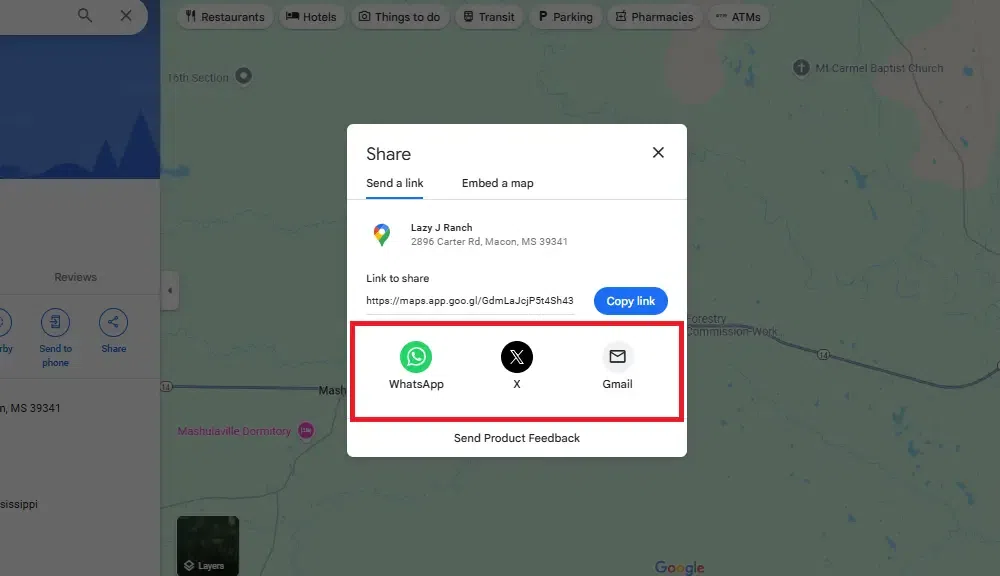
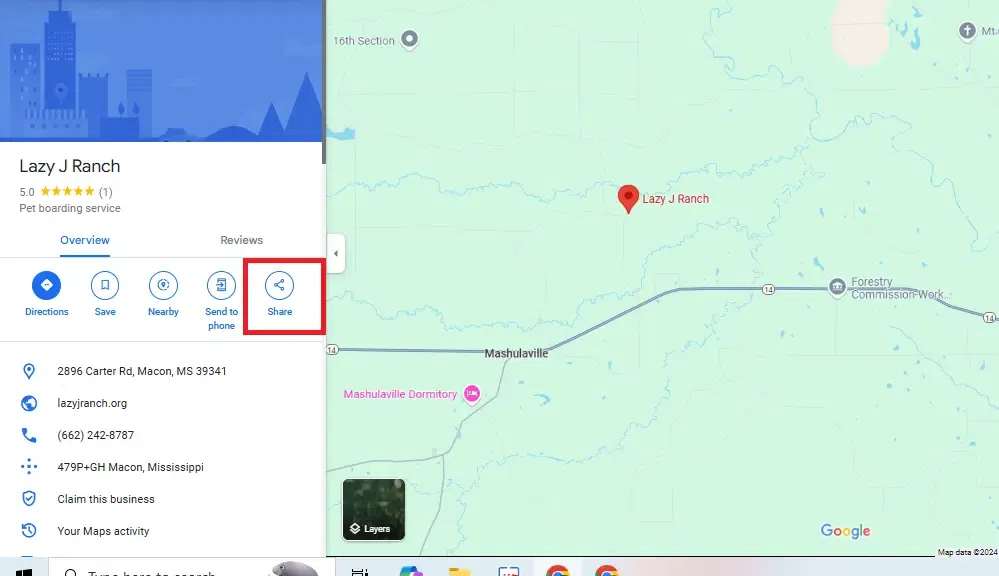
– Tap **Share** to send the location via message, email, WhatsApp, etc.
– Get directions by tapping the navigation icon
Here are visual examples of the process on Android:

2. On iPhone / iPad (iOS)
The steps are almost identical to Android — Google Maps behaves consistently across platforms.
1. Launch the **Google Maps** app on your iPhone or iPad.
2. Scroll/zoom to find the spot you want to mark.
3. **Long-press** firmly on the location until the red pin drops.
4. Swipe up on the info card at the bottom for more options.
5. Tap **Save**, **Label** (to rename it), **Share**, or start directions.
Pro tip: Saved pins sync across devices if you’re signed in with the same Google account.
See these iOS-specific screenshots for reference:

### 3. On Desktop / Web Browser (maps.google.com)
Desktop offers a slightly different but equally simple method.
1. Go to **maps.google.com** in your browser (Chrome, Firefox, Edge, etc.).
2. Navigate to the area you want to pin.
3. **Right-click** (or Ctrl+click on Mac) on the exact spot.
4. From the context menu, select **”Drop a pin”** (or “What’s here?” in some versions — it achieves the same result).
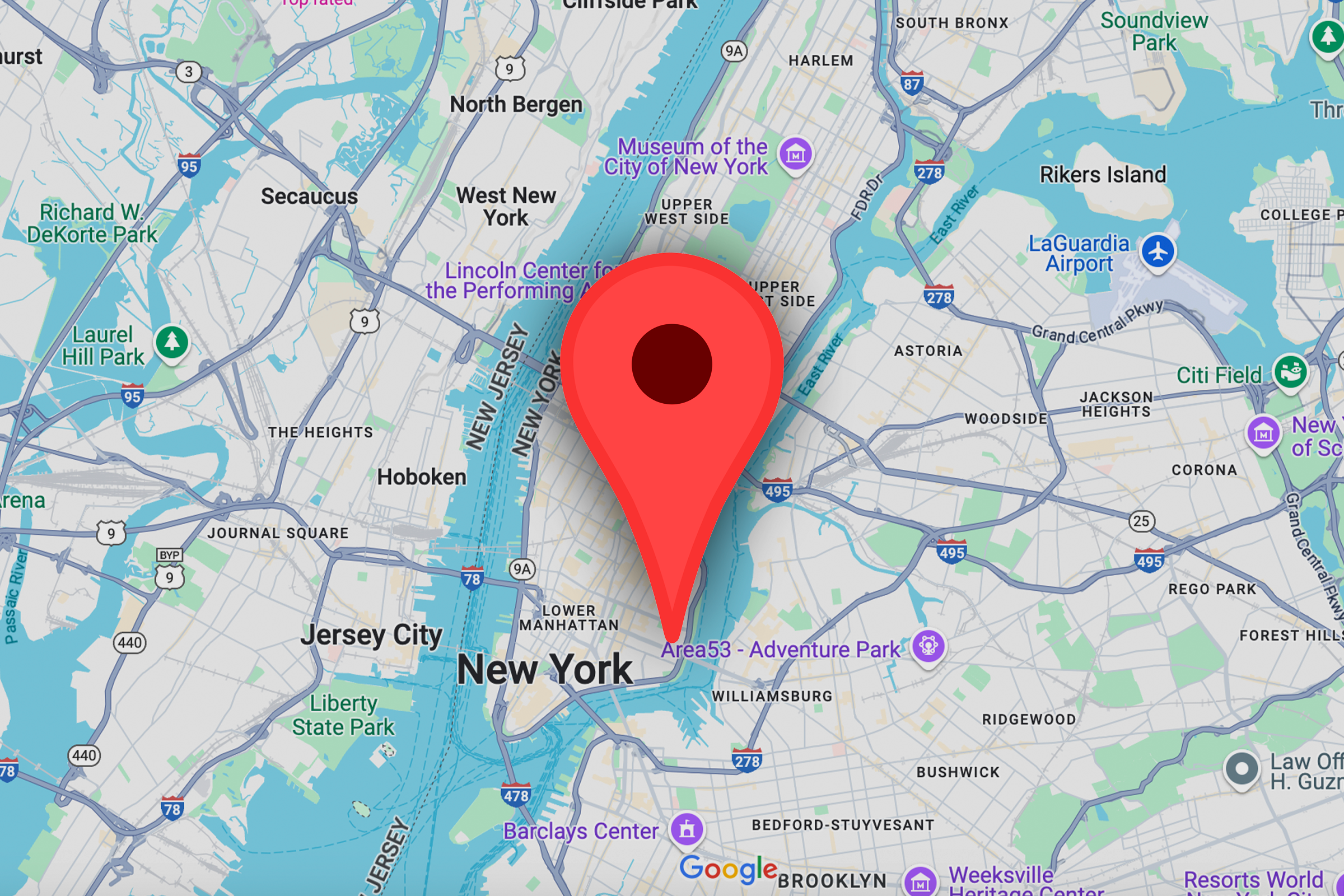
5. A grey/red pin appears with an info panel at the bottom.
6. Click the pin or panel to **Save**, **Label**, **Share**, or get directions.
Visual guide for desktop pinning:
Bonus: Saving, Labeling, Sharing & Managing Pins (All Devices)
Once the pin is dropped:
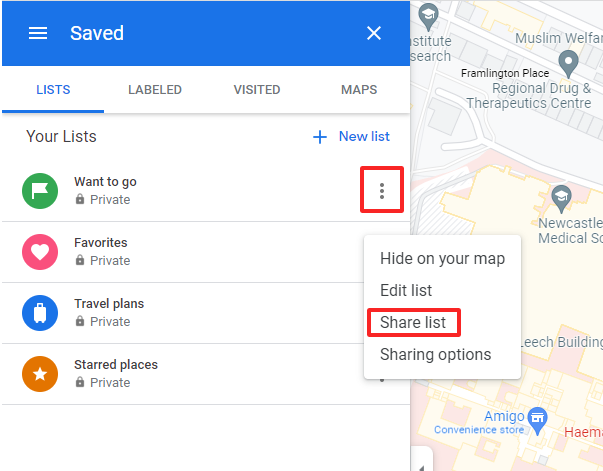
– **Save** → Choose or create a list (syncs to your Google account).
– **Label** → Add a custom name like “Favorite Coffee Spot” or “Parking Spot #3”.
– **Share** → Copy link, send via apps, or embed in messages — recipients get exact directions.
– **Edit/Remove** → Tap the pin → select “Remove” or edit from “Your places” > “Saved”.
Here are examples of save/label/share options:
Quick Tip for 2026
With ongoing Gemini AI integration, you can soon say things like “Drop a pin at the park entrance” hands-free on supported devices.
That’s it! Dropping a pin takes seconds but saves tons of time. If you run into any differences on the very latest app version, just update Google Maps — the feature is rock-solid across platforms.
Let me know if you need help with advanced uses like multiple pins or custom maps!
Elevate your online presence with Conversion Seed trusted Digital Matketing strategies and solutions.